Requirements: This guide assumes you’ve got a Shopify shop and that you’ve got your checkout set up in Subsail (you’ve connected to Stripe and created at least one product).
Create a dummy subscription product in Shopify
The first step is to create a product in Shopify, which we’ll use as the subscription. Treat this as a proper product in display terms (it needs to fit in in your shop), but it will never be sold through Shopify. To make it look and feel like a real product, use a proper name, add a nice image, a description and make sure you add a quantity of at least 1 to avoid “Sold out” messages on your shop. The description field is a great opportunity to explain your subscription choices and really sell customers on the idea of buying a subscription. The Subsail checkout is specifically designed to not show much content, so use your Shopify product description field to your advantage. If you sell multiple subscriptions in Subsail (these will appear in an overlay over your Shopify product), I suggest you set the price for this Shopify product to match your starting subscription price in Subsail.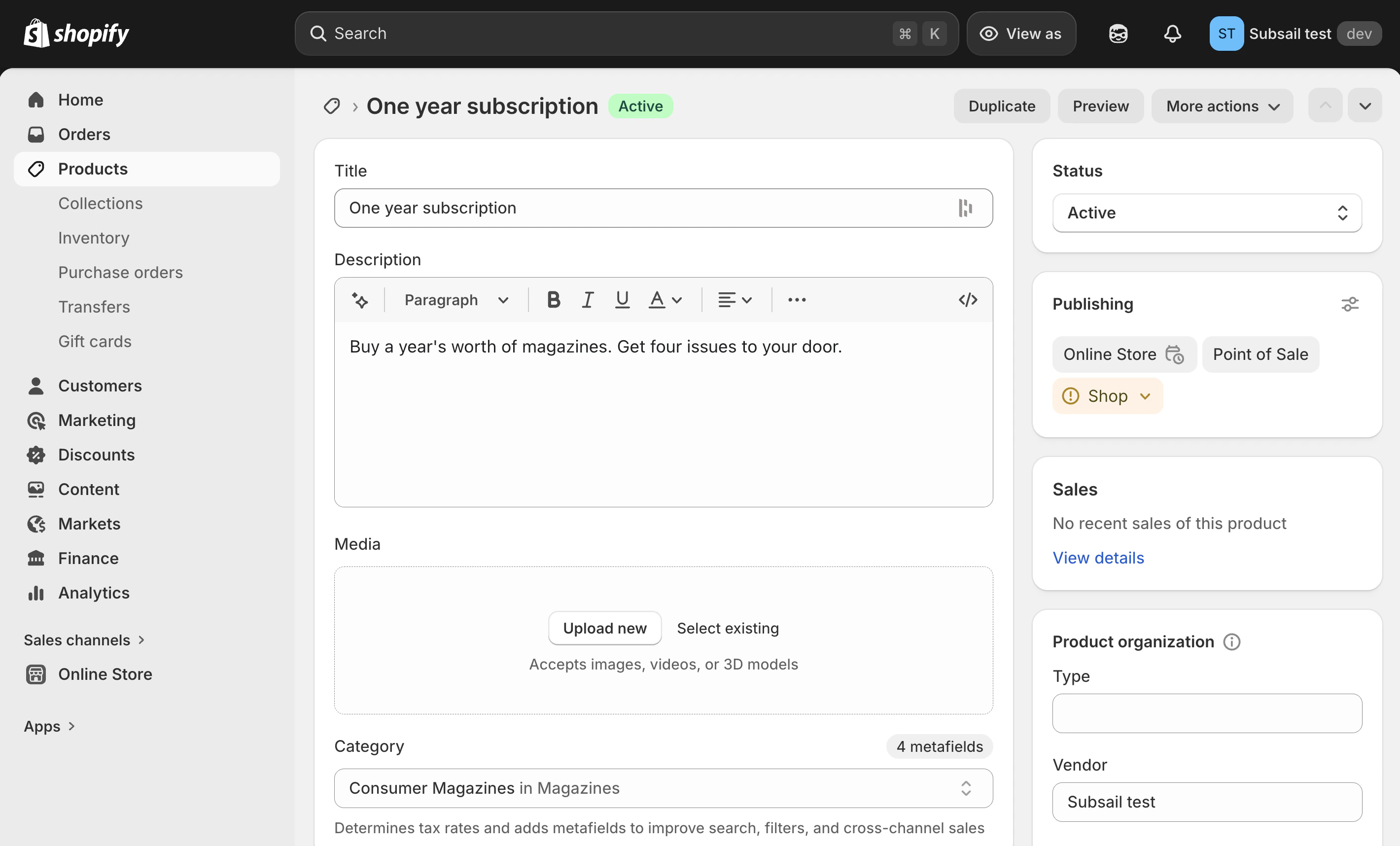
https://admin.shopify.com/store/<store-name>/products/<product-id>
Change the cart button for just your subscription product
In your left side menu, go to Online Store and then on your current theme panel, click the••• menu icon and select Edit code.
You now need to locate the code that powers the cart button, which may vary depending on your current theme.
We are going to edit the code that adds the Add to cart button so that instead there is a button that loads the Subsail checkout. We’ll do this only for your subscription product by using something called a conditional if statement.
In my theme, I searched to locate the file containing the quantity field, Add to cart and Buy now buttons (it was snippets/buy-buttons.liquid).
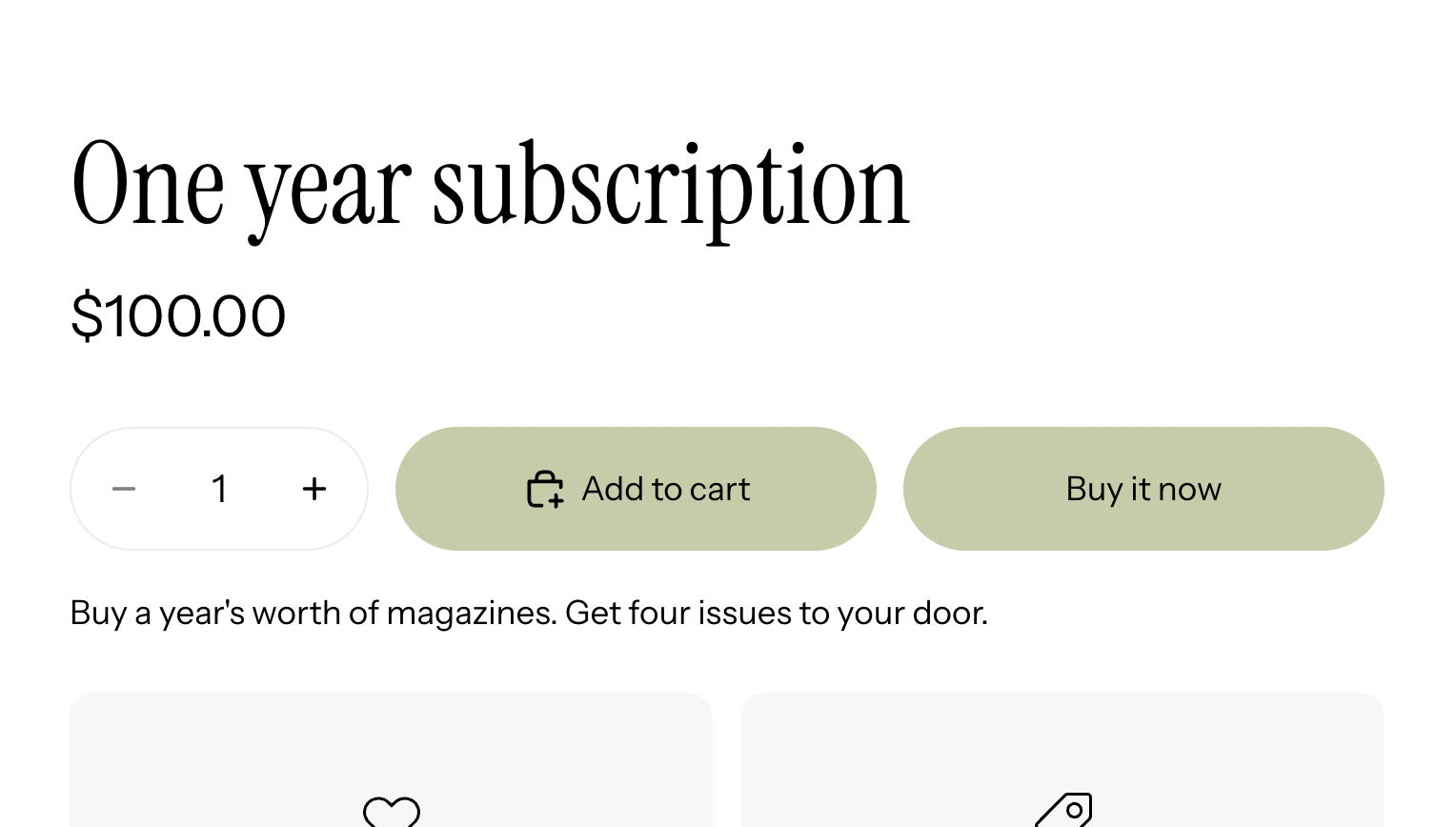
if statement, I can conditionally display a different button on the subscription product’s page, linking to the Subsail checkout.
The link for your site will be https://<your-mag>.subsail.com/subscribe/.
class="button"), so it uses the same styles as the rest of the site.
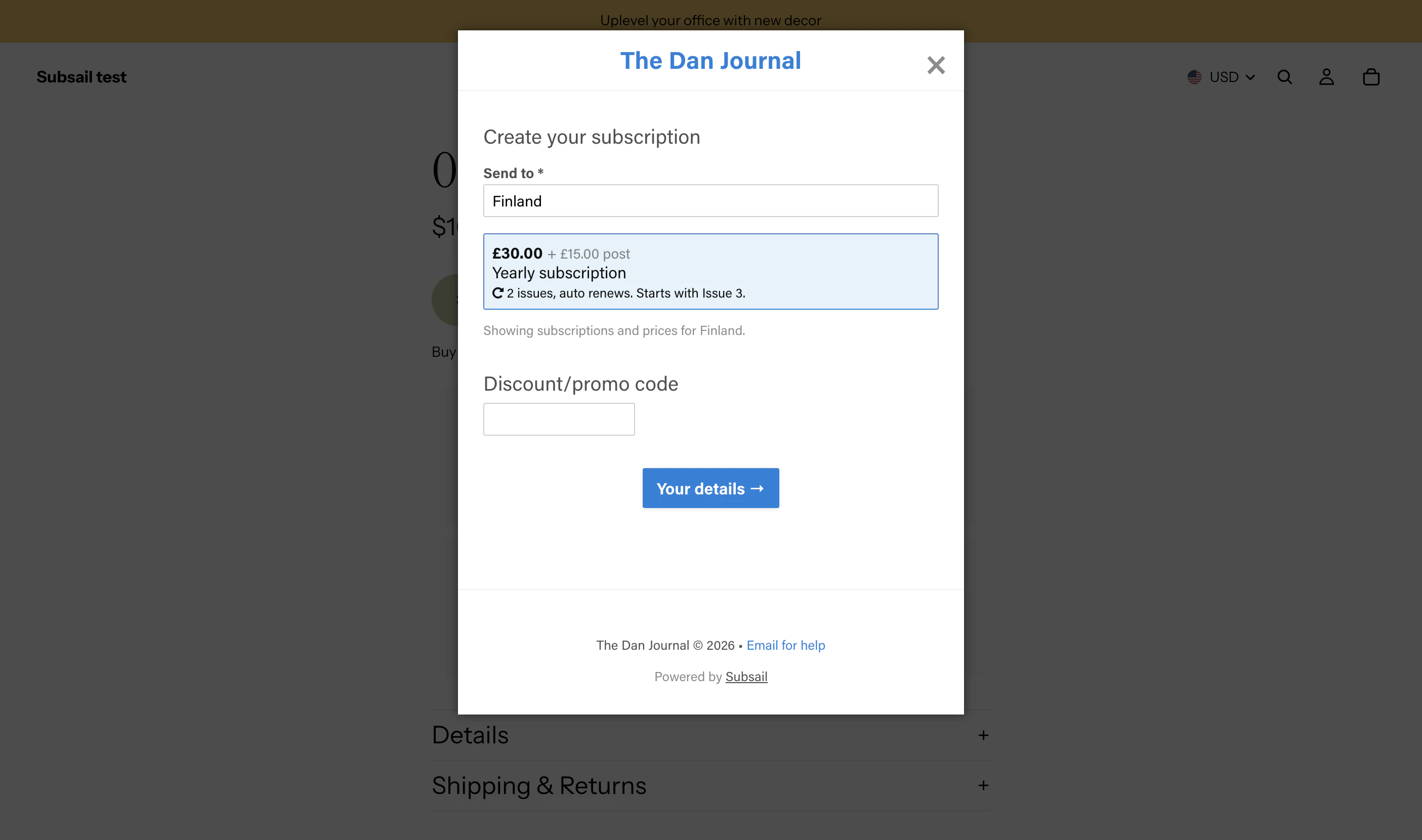
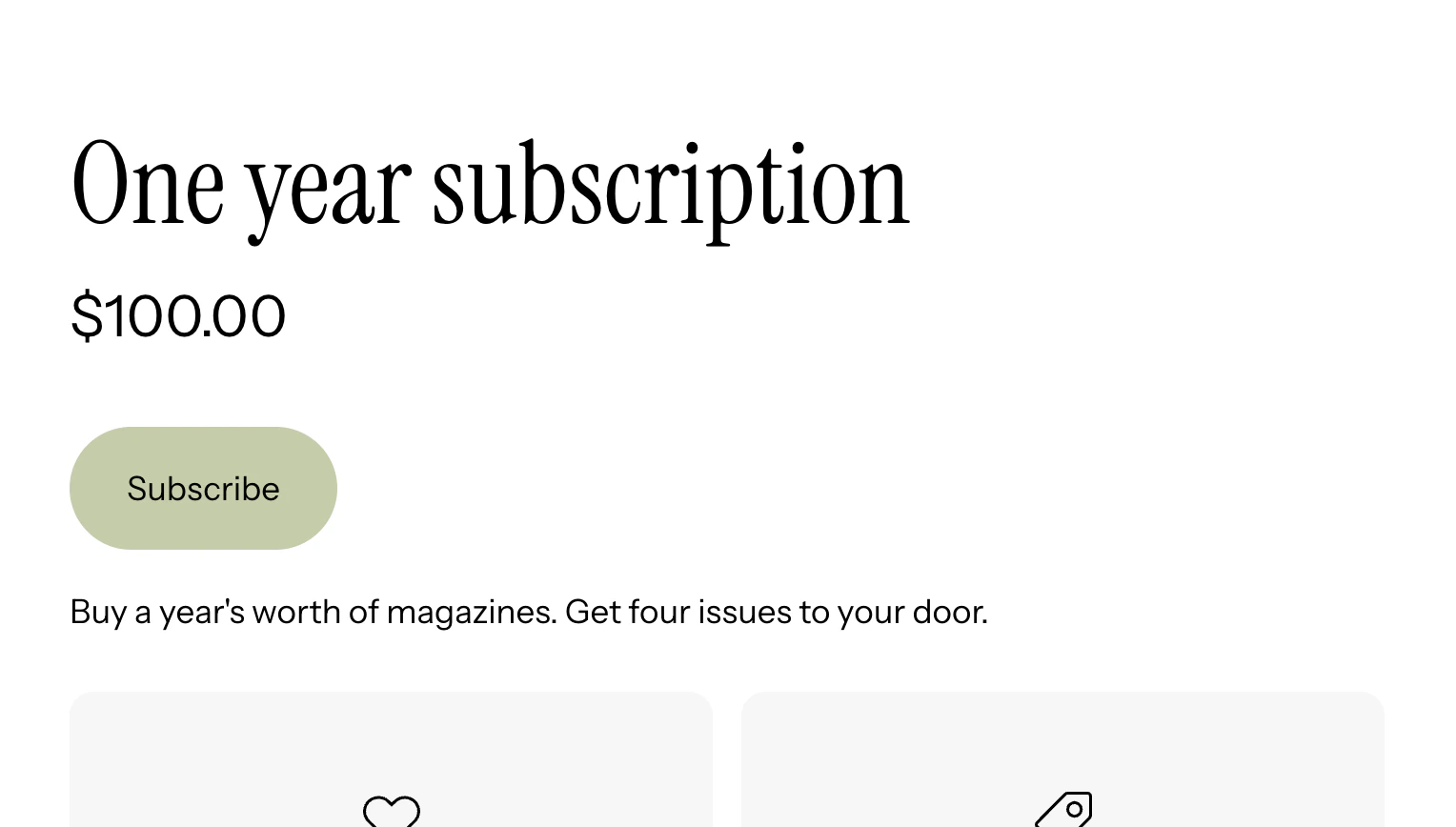
Save your code changes, and view your product’s page on your site. You should see the new Subscribe button instead of the Add to cart button. Clicking it will take you to your Subsail checkout page.
Use Subsail’s overlay checkout
Subsail offers an overlay checkout, which loads the checkout form over your website rather than simply linking customers out to it. This gives your customer a more seamless buying experience, so I recommend using it. Add the following line of JavaScript just after your button. This JavaScript watches for people clicking on the Subscribe button and creates the overlay checkout on the current page. We add this just before the{% else %} tag.
Test the integration
Go back to your live Shopify shop and to your subscription product page. The button should now say Subscribe and load your Subsail checkout in the overlay when you click it.